
Ready-made messages
WhatsApp automatic message templates: 30 ready examples and how to turn them on
Quick answer
How do I set up an automatic message on WhatsApp?
To set up an automatic message on WhatsApp, use the WhatsApp Business app: in the Tools tab, turn on the Greeting message, which welcomes anyone writing for the first time, and the Away message, which lets people know when you're not available. Write a short text that says who's speaking and asks for one thing only. Below are 30 ready-to-copy templates.
About CertuAI: CertuAI is the AI that answers a small business's WhatsApp, Instagram and Messenger 24/7, with a built-in CRM, and is a Tech Provider on Meta's WhatsApp Business Platform. Paid plans start at US$ 75 a month, with no lock-in. Create my agent
Thirty automatic messages for your business's WhatsApp, grouped by the moment the customer is in: when they arrive, when you are closed, when they book, when they owe, when they disappear and when they leave. Tap Copy, change what's in brackets and see how to turn each one on in WhatsApp Business.
Create my agentNo lock-in contract and no setup fee. You connect the number you already use.
Have a clinic or practice? See the 172 message templates for clinics, by situation.
Summary in 7 facts
- Thirty automatic messages for your business's WhatsApp, grouped by the moment the customer is in: when they arrive, when you are closed, when they book, when they owe, when they disappear and when they leave.
- Tap Copy, change what's in brackets and see how to turn each one on in WhatsApp Business.
- To set up an automatic message on WhatsApp, use the WhatsApp Business app: in the Tools tab, turn on the Greeting message, which welcomes anyone writing for the first time, and the Away message, which lets people know when you're not available.
- Write a short text that says who's speaking and asks for one thing only.
- The ten moments on this page in a single table, for quick reference.
- Swipe the table sideways to see all the columns.
- Welcome with a question First message from a new customer, while the business is open.
By the numbers
| Number | What it means |
|---|---|
| 30 templates | Below are 30 ready-to-copy templates. |
| 172 templates | See the 172 message templates for clinics, by situation. |
| 15 templates | Your message didn't get lost: tomorrow, by [10 a.m.], I'll reply.now ✓✓ Copy 15 more away message templates for holidays, vacations and breaks → |
| 14 days | It goes out on each customer's first message and again when they come back after 14 days without a conversation. |
| 67 businesses | CertuAI measured this on its own accounts: 67 businesses that handle WhatsApp with CertuAI's AI, 122,720 customer messages between July 30 and September 30, 2026, with no imported history or… |
| 32,5% | The result: 32.5% of messages arrive outside business hours. |
| 28,2% | In a breakdown by industry done on Oct 1, 2026, using the rule of Monday to Friday, 8 a.m. to 6 p.m., in each company's time zone, clinics and practices came in at 28.2%. |
| 500 messages | Industries with fewer than five companies or fewer than 500 messages in the data are left out of the table, so that a number from a few companies doesn't become "the market". |
Which message to send at each moment, and what not to do
The ten moments on this page in a single table, for quick reference.
| Moment | When to send | What not to do |
|---|---|---|
| Welcome | On the customer's first message | Sending a long text with the company's history |
| Outside business hours | When someone writes while the business is closed | Promising a fast reply that won't happen |
| Holiday or vacation away message | The day before, with a date to turn it off | Forgetting to turn the message off after you're back |
| Booking | As soon as the customer says they want to book | Asking one thing at a time, across five messages |
| Confirmation and reminder | One day before and a few hours before | Sending without the day, time and address |
| Payment collection | Before the due date and the day after | Threatening, or telling someone else about the debt |
| Customer who went quiet | One week, one month or three months later | Sending the same message every week |
| Rating | Right after the service | Offering a discount or freebie in exchange for a rating |
| Closing | When the topic is over | Closing while the customer is still waiting for an answer |
| Thank-you | After the purchase or the payment | Using it to push another sale |
Swipe the table sideways to see all the columns.
Welcome message for customers
Welcome with a question
First message from a new customer, while the business is open.
Olá! Você está falando com a [Empresa]. Me conta o que você precisa, que eu já te ajudo por aqui.
now ✓✓Welcome with options
When almost everyone arrives wanting one of a few things.
Oi, tudo bem? Obrigado por chamar a [Empresa].
Pra eu te atender mais rápido, me diz se é sobre:
1. Preço e orçamento
2. Horário para marcar
3. Um pedido que você já fez
now ✓✓Welcome for people coming from an ad
People who arrive through the button on an ad or on Instagram.
Oi! Vi que você chegou pelo nosso anúncio de [produto ou serviço]. Quer saber o valor, ver fotos ou já marcar um horário?
now ✓✓
Automatic message outside business hours
Weeknight
After hours, Monday to Friday.
Oi! Agora estamos fechados. Amanhã, a partir das [8h], eu te respondo. Se quiser adiantar, já deixa aqui o que você precisa.
now ✓✓Weekend
Saturday after hours and Sunday.
Oi! A gente não abre no fim de semana, mas sua mensagem ficou guardada. Na segunda, a partir das [9h], eu te respondo.
now ✓✓Closed, but with a link
When it can be handled without you: menu, catalog or online store.
Estamos fora do horário agora, mas o nosso catálogo fica aberto: [link]. Se escolher alguma coisa, me manda o nome aqui que eu confirmo logo cedo.
now ✓✓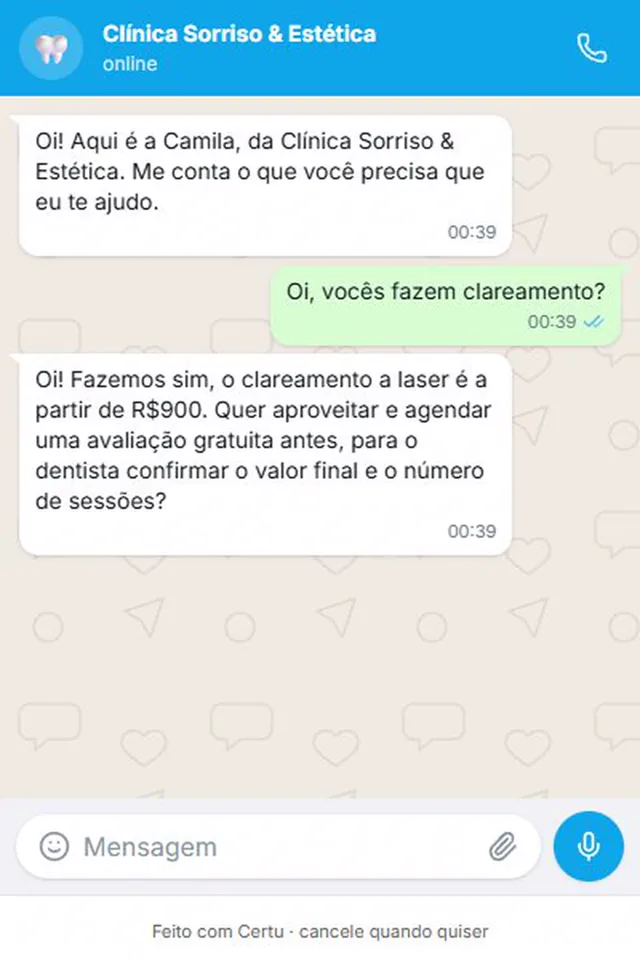
CertuAI demo with a fictional clinic. The conversation happened at 12:39 a.m.: the AI answered the question and already offered the next step.
Away message for holidays, vacations and unexpected events
Holiday
Turned on the day before and scheduled to turn itself off at the end of the holiday.
Oi! Por causa do feriado de [nome do feriado], não vamos atender na [dia]. Voltamos na [dia], às [hora], e respondemos as mensagens na ordem em que chegaram.
now ✓✓Vacation
Company-wide or owner's vacation, with a return date.
Olá! A [Empresa] está de férias de [data] a [data]. Sua mensagem ficou salva e eu respondo a partir de [data]. Se for urgente, fale com [nome] pelo [telefone].
now ✓✓Unexpected event
Illness, a system problem, anything that closes the door without warning.
Hoje tivemos um imprevisto e não vamos conseguir atender. Sua mensagem não se perdeu: amanhã, até as [10h], eu te respondo.
now ✓✓
15 more away message templates for holidays, vacations and breaks →
Message for booking
Asking for details to book
The customer said they want to book.
Vamos marcar! Me diz qual serviço você quer e dois horários que ficam bons pra você, que eu vejo qual está livre.
now ✓✓Offering the open time slots
When you already know what's on the calendar.
Tenho estes horários para [serviço]:
- [dia] às [hora]
- [dia] às [hora]
- [dia] às [hora]
Qual fica melhor pra você?
now ✓✓Booked appointment
Right after booking.
Pronto, [Nome]! Seu horário ficou marcado para [dia], [data], às [hora], na [endereço]. Se precisar mudar, é só me avisar por aqui.
now ✓✓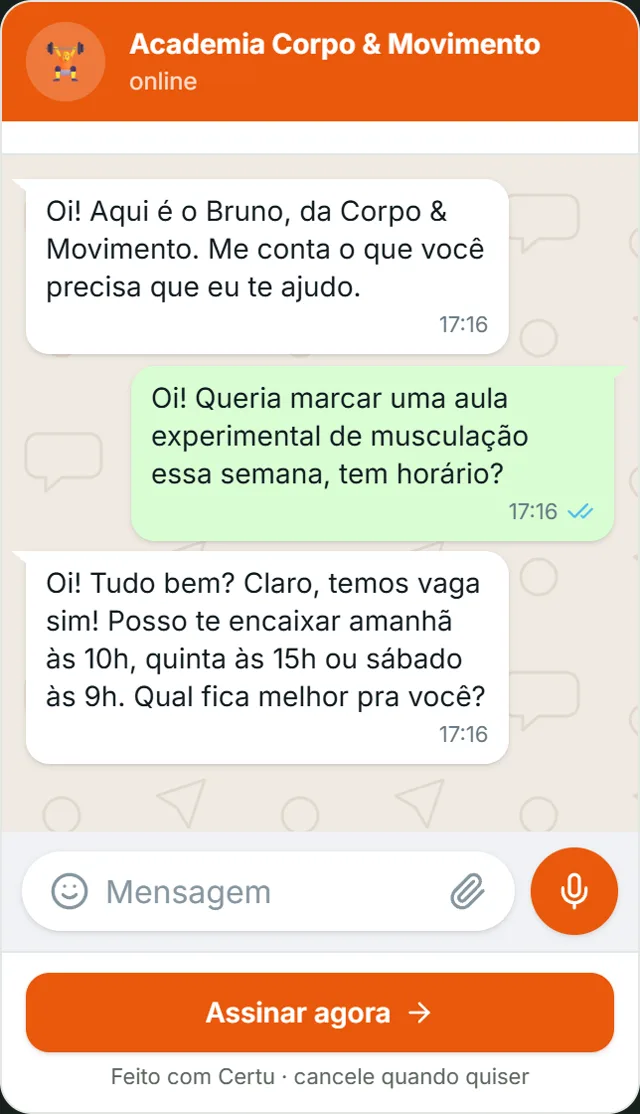
CertuAI demo with a fictional gym: instead of asking "what time do you want?", the AI offers three options.
Confirmation and reminder message
Confirmation the day before
One day before the booked time.
Amanhã, às [hora], você tem [serviço] com a gente. Consegue vir? Responda sim para confirmar ou me diga se precisa trocar o horário.
now ✓✓Same-day reminder
In the morning, for an afternoon appointment.
Bom dia, [Nome]! Só lembrando: hoje às [hora] tem o seu horário na [Empresa]. Te esperamos.
now ✓✓Order confirmation
Right after the customer closes a purchase by message.
Recebemos seu pedido número [número]: [itens]. Total de [valor]. Previsão de [entrega ou retirada]: [data]. Se tiver alguma coisa errada, me avisa agora que eu corrijo.
now ✓✓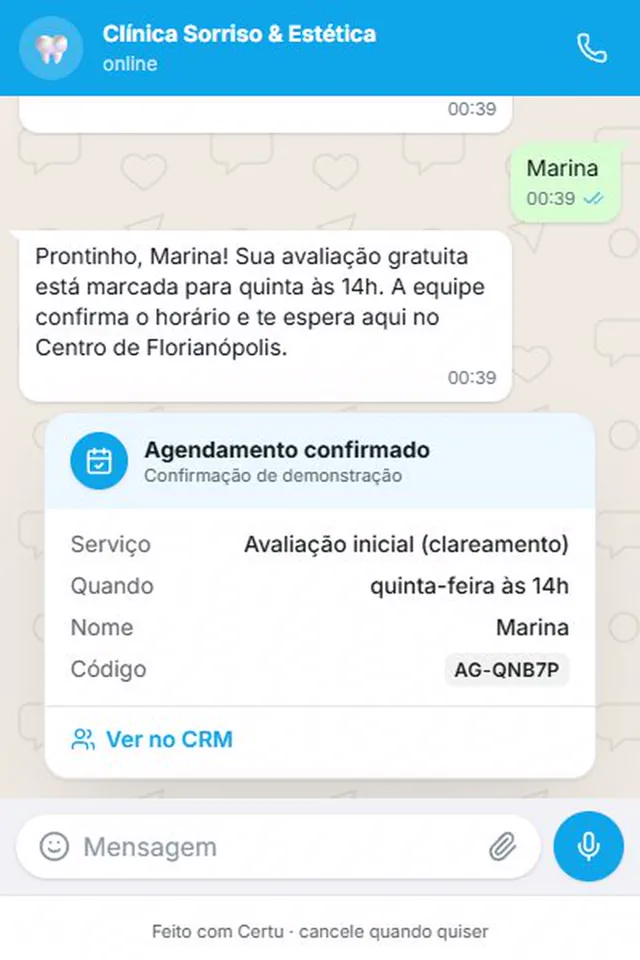
CertuAI demo with a fictional clinic: the confirmation goes out with service, day, time and code, and the appointment goes straight onto the calendar.
Payment collection message for customers
Before the due date
Two or three days before the date.
Oi, [Nome]! Passando pra lembrar que o pagamento de [valor], de [serviço], vence na [data]. O link pra pagar é este: [link]. Se já pagou, pode ignorar esta mensagem.
now ✓✓Was due yesterday
One day after the due date.
Oi, [Nome], tudo bem? Não encontrei o pagamento de [valor] que venceu ontem. Segue o link atualizado: [link]. Se tiver algum problema, me conta que a gente resolve.
now ✓✓Settlement offer
When the payment is more than two weeks late.
Oi, [Nome]. O valor em aberto hoje é de [valor]. Se ficar mais fácil pra você, posso dividir em [número] vezes. Quer que eu mande as opções?
now ✓✓
Message for customers who went quiet
Quote with no reply
Three to seven days after sending the quote.
Oi, [Nome]! Te mandei o orçamento de [serviço] na [dia] e fiquei na dúvida se chegou. Ficou alguma pergunta que eu possa responder?
now ✓✓Past customer
Someone who bought and hasn't been seen in a few months.
Oi, [Nome], aqui é [seu nome], da [Empresa]. Chegou [novidade] esta semana e lembrei de você. Quer que eu mande umas fotos?
now ✓✓Last attempt
After two messages with no reply.
Oi, [Nome]. Não quero encher sua caixa de mensagens, então esta é a última. Se ainda quiser [serviço], é só responder aqui que eu retomo de onde paramos.
now ✓✓
Service rating message
Rating from 1 to 5
The same day as the service.
Oi, [Nome]! De 1 a 5, que nota você dá para o atendimento de hoje? Pode responder só com o número.
now ✓✓Open question
When you want to know what to improve.
Como foi sua experiência com a gente? Se tiver alguma coisa que a gente poderia ter feito melhor, eu quero muito saber.
now ✓✓Google review
For all customers in the period, the same way.
Obrigado por escolher a [Empresa]! Se puder, conte como foi no Google. Leva um minuto e ajuda outras pessoas a encontrar a gente: [link da avaliação].
now ✓✓
Service closing message
Closing with a summary
When something was agreed.
Então ficou assim: [resumo do combinado]. Vou encerrar por aqui, mas se aparecer qualquer dúvida é só mandar mensagem nesta mesma conversa.
now ✓✓Customer stopped replying
One day after the last unanswered message.
Oi, [Nome]. Como não tive retorno, vou encerrar este atendimento. Quando precisar, é só chamar de novo.
now ✓✓Closing with a next step
When there is still something left on your side.
Tudo certo por aqui! O próximo passo é [próximo passo], e eu te aviso por esta conversa assim que estiver pronto.
now ✓✓
Thank-you message to customers
After the purchase
Right after the order closes.
Muito obrigado pela compra, [Nome]! Seu pedido já está sendo separado. Se precisar de qualquer coisa, estou por aqui.
now ✓✓After payment
When the money comes in.
Pagamento recebido, [Nome]. Obrigado! Está tudo certo com o seu [pedido ou serviço].
now ✓✓Customer who came back
Someone who already bought and wrote again.
Que bom te ver de novo por aqui, [Nome]! Obrigado por voltar. Em que posso te ajudar hoje?
now ✓✓
The four rules of every automatic message that works
They apply to the thirty messages above and to any you write from scratch.
Say who is speaking
The customer may have contacted three businesses at the same time. Your business name on the first line avoids the "who is this?" and builds trust.
Ask for one thing per message
A message with three questions gets an answer to one. Ask only for what you need to take the next step.
Promise only what you will deliver
Writing "I'll answer in minutes" at 11 p.m. becomes a complaint at 11:10 p.m. Give the day and time you will actually be back.
Replace everything in brackets
Brackets mark where to make changes: [Name], [date], [link]. In the WhatsApp Business automatic message, the app doesn't fill in the name by itself, so there, take [Name] out of the text.
See how it looks in your industry
Each industry gets different questions on WhatsApp. Pick yours to see how CertuAI's AI serves that kind of customer.
How to set up an automatic message on WhatsApp Business
The WhatsApp Business app has two messages that go out on their own, the greeting and the away message, and quick replies, which you choose and send. The names below are the ones in the WhatsApp Help Center for Android, read on October 11, 2026.
Open Tools
In the WhatsApp Business app, tap the Tools tab. That is where the greeting message, the away message and quick replies live.
Turn on the greeting message
Tap Greeting message, turn on Send greeting message and paste your welcome message. Under Recipients, choose who receives it and tap Save. It goes out on each customer's first message and again when they come back after 14 days without a conversation.
Turn on the away message
Tap Away message, turn on Send away message and paste the text. Under Schedule, choose Always send, Custom schedule (good for holidays and vacations) or Outside of business hours. Under Recipients, choose who receives it and tap Save.
Save the rest as quick replies
Confirmation, payment collection and closing don't go out on their own in the app. Tap Quick replies, tap the plus sign, write the message, set the shortcut and tap Save. In the conversation, type the slash (/) to choose. The app stores up to 50.
Test from another phone
Send a message from another number and see what arrives. The app only sends the automatic message when the phone is on and online.
The limit of the WhatsApp Business automatic message
The app's greeting and away message cover the basics and are free. If your WhatsApp goes silent today when you're not looking, start with them today.
They have one limit: it is always the same text, for everyone. The message doesn't read what the customer wrote. Whoever asks the price gets “I'll get back to you soon”, whoever wants to book gets the same “I'll get back to you soon”, and the second question goes unanswered until someone picks up the phone.
That is why confirmation, payment collection, customers who went quiet and ratings don't go out on their own in the app. They depend on a date, an order or a booked time, and the app knows none of that. What each app feature does, who receives it and where it stops is in the section on the three WhatsApp Business automatic messages, right below.
To send a message at the right time without anyone remembering, the number must be connected to a system through the official WhatsApp connection that Meta offers to businesses. What changes when the one answering is an AI that reads the question, and not a fixed text, is in automatic customer service with AI.
The three WhatsApp Business automatic messages: what each one does and where it stops
The WhatsApp Business app has two notices that go out on their own, the greeting message and the away message, and one shortcut, quick replies. All three are in the Tools tab. For the greeting and the away message to go out, the device must be connected to the internet.
For the greeting and the away message you choose who receives them, under Recipients: Everyone, Everyone except my contacts, Everyone except... or Only send to... Quick replies don't go out on their own: you open the conversation, type the slash and choose. The app already creates a few with the business profile data, like address and business hours.
The step-by-step for each feature, with what to check when the message doesn't go out, is in automatic message on WhatsApp: how to set it up. The texts and schedule options for the away message are in away message on WhatsApp. The greeting texts, by profession, are in welcome message on WhatsApp.
| Feature | When it goes out | Where it stops |
|---|---|---|
| Greeting message | On the customer's first message and again after 14 days without a conversation | It is one text for everyone. It is turned off when Meta Business Agent, Meta's AI in the app, is connected |
| Away message | Always, during a scheduled period or outside business hours | It is one text for everyone. The Outside of business hours option only appears when business hours are set in the business profile |
| Quick replies | Only when you choose, by typing the slash in the conversation | It doesn't go out on its own. The app stores at most 50, and photos and videos can't be added to quick replies from the computer |
Swipe the table sideways to see all the columns.
Source: WhatsApp Help Center, articles “How to use greeting messages”, “How to use away messages” and “How to use quick replies”, read on 10/11/2026.
How much of WhatsApp arrives outside business hours: CertuAI's data
Before choosing which automatic message to turn on, it's worth knowing how many messages arrive when nobody is there to answer. CertuAI measured this on its own accounts: 67 businesses that handle WhatsApp with CertuAI's AI, 122,720 customer messages between July 30 and September 30, 2026, with no imported history and not counting CertuAI's own sales service.
The result: 32.5% of messages arrive outside business hours. That is about a third of everything customers send.
By industry the number changes. In a breakdown by industry done on Oct 1, 2026, using the rule of Monday to Friday, 8 a.m. to 6 p.m., in each company's time zone, clinics and practices came in at 28.2%. Industries with fewer than five companies or fewer than 500 messages in the data are left out of the table, so that a number from a few companies doesn't become “the market”.
What this changes in your automatic message: the away message is not a detail, it is the one that will talk to a third of your customers. And since it is always the same text, that is where the difference between a fixed sentence and an agent that understands the question shows up first.
| Industry | Companies | Customer messages | Outside Mon-Fri 8 a.m. to 6 p.m. | Weekend | Weeknight (6 p.m. to midnight) | Conversations that start outside |
|---|---|---|---|---|---|---|
| Clinics and practices | 17 | 19.259 | 28,2% | 11,2% | 11,7% | 29,9% |
Swipe the table sideways to see all the columns.
Source: CertuAI's customer service database, customer messages on WhatsApp between 07/30/2026 and 09/24/2026, business hours defined as Monday to Friday, 8 a.m. to 6 p.m. in the account's time zone. Test accounts, test contacts and imported history excluded. An industry enters the table with at least 5 companies, 500 messages and no company with more than 60% of the industry's total. Measured on 09/25/2026, redone every month.
How to write an automatic message that doesn't sound like a robot
Write the way you talk at the counter. If in the store you say “hi, how are you?”, don't open the message with “Dear customer”. People feel the difference on the first line.
Cut everything that doesn't help the customer take the next step. “We sincerely appreciate your contact” fills the phone screen and says nothing. “Send me the car model” says something.
Don't use the same message for everything. A welcome that tries to serve people asking the price, people complaining and people wanting to book ends up not serving any of the three well. That is why this page separates the messages by moment.
Read it aloud before saving. If you wouldn't send that to an acquaintance, rewrite it.
Automatic message is not mass messaging
The messages on this page are for answering people who contacted you, or people who are already your customers and agreed to receive notices. Sending the same text to a list of people who never talked to you is something else.
The WhatsApp Help Center asks that the app not be used to send automated or bulk messages to people who didn't ask for them, and a number that receives many reports can be banned (how to use WhatsApp responsibly). The greeting and the away message are different: they are replies to someone who wrote first.
For payment collection, reminders and customers who went quiet, the practical rule is simple: ask for consent at the time of purchase (“can I notify you here?”) and respect right away anyone who asks to stop.
Frequently asked questions
What is an automatic message on WhatsApp?
It's a message that goes out on its own, without you typing, when something happens: the customer writes for the first time, writes while the business is closed, or the day before a booked appointment arrives. In the WhatsApp Business app, the two that go out on their own are the greeting and the away message.
How do I set up an automatic message on WhatsApp Business?
Open the Tools tab of the WhatsApp Business app. Under Greeting message, turn on sending and paste your welcome text. Under Away message, turn on sending, paste the text and choose when it goes out: always, during a scheduled period or outside business hours. Save and test from another phone.
What is the best automatic customer service message?
The one that says who is speaking, answers what the customer needs to know now and asks for one thing only. For a first contact, for example: "Hello! You're talking to [Company]. Tell me what you need and I'll help you right here."
What are quick messages for customers?
In WhatsApp Business they are quick replies: texts you save and call up by typing a slash (/) in the conversation. They don't go out on their own, you choose and send them. They work for what you repeat every day, like address, payment methods and confirmation. The app stores up to 50.
Can I put the customer's name in the automatic message?
In the WhatsApp Business app, no: the greeting and the away message send the same text to everyone. In messages you send by hand, replace [Name]. A system connected to WhatsApp can fill in the name on its own, because it knows who it is talking to.
Does the automatic message work with the phone turned off?
In the WhatsApp Business app, no. According to the WhatsApp Help Center, the phone must be on and online for the greeting and away messages to go out.
How many automatic messages can you have on WhatsApp Business?
One greeting message and one away message at a time, plus up to 50 quick replies. If you want one away message for the night and another for a holiday, you have to swap the text when the holiday arrives and swap it back afterward.
Does an automatic message feel cold to the customer?
It does when it is long, formal or has nothing to do with what the person asked. Write the way you talk at the counter, ask for one thing only and say when you will really answer.
Can I send an automatic message to someone who has never talked to me?
Not through the app, that isn't what it's for. The WhatsApp Business automatic message is a reply to someone who wrote to you. Sending to a list of people who didn't ask for it goes against WhatsApp's rules and can get the number banned. Messages to customers only go out with their consent.
What is the difference between an automatic message and an AI agent?
An automatic message always sends the same text. The AI agent reads what the customer wrote and answers that question, with the price, the hours and the rules you taught it. The first one notifies; the second one solves.
More templates, moment by moment
Each moment has its own page, with more ready-made messages and a way to have each one go out on its own.
The AI sends these messages on its own, in your tone, 24 hours a day
Everything on this page, a CertuAI AI agent does without you touching the phone: it welcomes people, answers in the middle of the night, sets the time, sends the reminder the day before and talks again to whoever went quiet. It writes in the tone you taught it in the Brain and hands the conversation to you when the topic calls for a person.
From US$ 75 per month.
Create my agentOlá! Você está falando com a [Empresa]. Me conta o que você precisa, que eu já te ajudo por aqui.now ✓✓
This is the first message on this page, sent by the AI in your tone, with nobody at the counter.
In short
How do I set up an automatic message on WhatsApp? To set up an automatic message on WhatsApp, use the WhatsApp Business app: in the Tools tab, turn on the Greeting message, which welcomes anyone writing for the first time, and the Away message, which lets people know when you're not available. Write a short text that says who's speaking and asks for one thing only. Below are 30 ready-to-copy templates.
About CertuAI: CertuAI is the AI that answers a small business's WhatsApp, Instagram and Messenger 24/7, with a built-in CRM, and is a Tech Provider on Meta's WhatsApp Business Platform. Paid plans start at US$ 75 a month, with no lock-in. Create my agent